![keydata-logo-fullcolor-4.png]](https://support.keydatadashboard.com/hs-fs/hubfs/keydata-logo-fullcolor-4.png?height=50&name=keydata-logo-fullcolor-4.png)
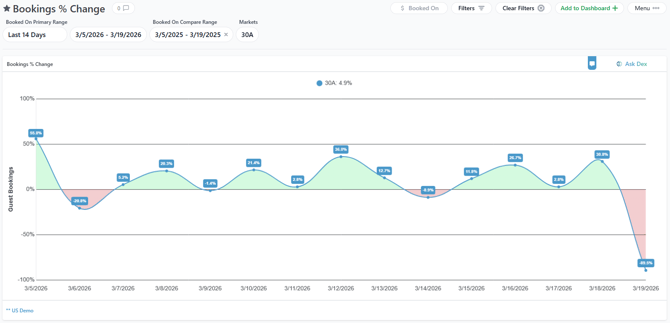
The Bookings % Change report shows how your booking activity has changed compared to a prior period, typically the same timeframe last year. Each data point on the chart represents the percentage increase or decrease in bookings for that time bucket relative to your compare range.
How It Works
The report compares two date ranges you select: a primary range (e.g., Jan–Jun 2025) and a compare range (e.g., Jan–Jun 2024). Both ranges must be set for the report to display — you'll see an error message if a compare range is missing.
For each time bucket (day, week, or month depending on your time series setting), the report:
- Counts your bookings in the primary range and the compare range for that bucket
- Adjusts for portfolio size — if you've added or removed properties between the two periods, the report normalizes by the number of active units so the comparison is fair
- Calculates the percentage change using the formula:
(bookings per unit now − bookings per unit then) ÷ bookings per unit then
A result of +15% means you received 15% more bookings per unit than the same period in your compare range. A result of −10% means bookings per unit were down 10%.
Reading the Chart
- The zero line represents no change — data points above it mean bookings are up, points below mean they're down.
- The legend displays the overall percentage change across the entire date range (e.g., "Destin: 8.2%").
- If either period has zero bookings for a given bucket, that data point shows as 0% rather than an error.
Why Per-Unit Normalization Matters
If you managed 50 properties last year and 75 this year, you'd naturally expect more total bookings even without any performance improvement. By dividing bookings by the number of active units in each period, the report gives you an apples-to-apples comparison of your booking rate per property, not just raw volume.
What Counts as a "Booking"
The report counts non-cancelled guest reservations where the booking date falls within the selected range. Revenue-based comparison is not available for this report in ProData — it uses guest booking counts only.
Time Bucket Options
| Setting | What Each Data Point Represents |
|---|---|
| Daily | % change for a single day |
| Weekly | % change aggregated over a full week |
| Monthly | % change aggregated over a calendar month |
Tips
- Year-over-year is the most common use case — set your compare range to the same period one year prior for a standard YoY view.
- Make sure your date ranges align — comparing ranges of different lengths can produce misleading results. Using the built-in YoY shortcut (by setting the Compare Range to "Minus one year" or "Minus one year same day of week") ensures both ranges cover the same calendar window.